
The meeting controller
Last modified: 22 May, 2024
The controller is the meeting deliver command centre for the president. It’s purpose is to select the content displayed on screen and provide the president with the script to guide the section of the meeting.
Starting the controller
|
Display the controller by selecting it from the Deliver area of HOME. You can run it on a secondary screen or a mobile device. |
 |
 |
When it first starts, the controller will look for a presentation screen. Once detected, the controller will display the agenda and wait for a selection. |
The controller’s agenda and script areas
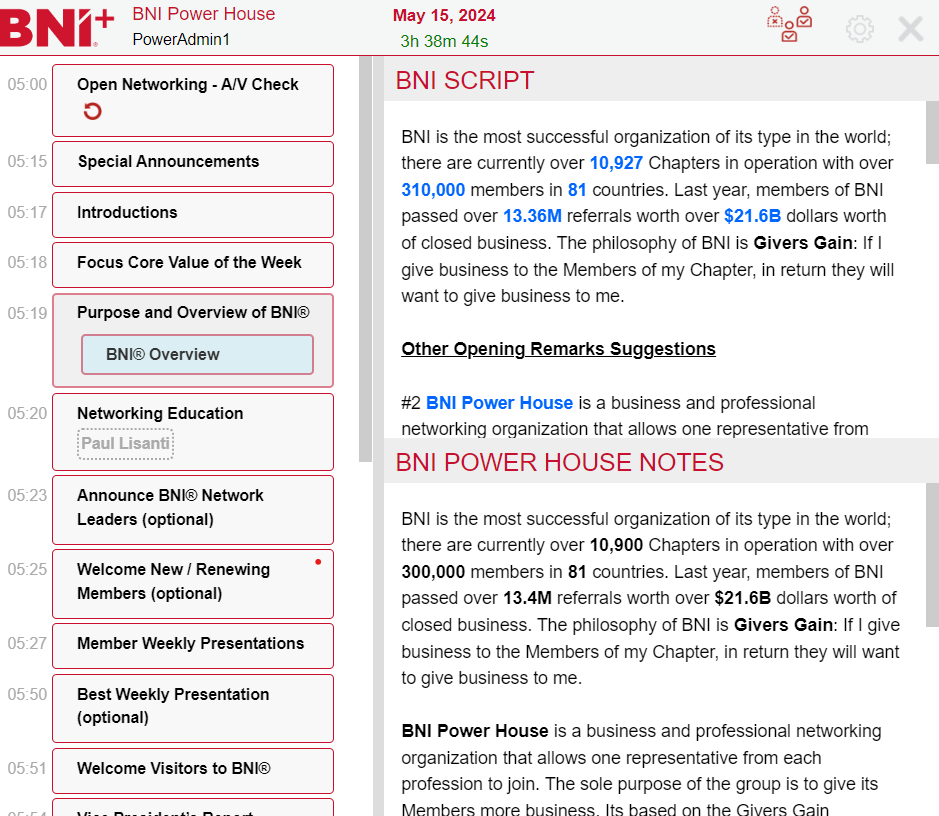
The controller has two main parts, separated by a scalable boundary. The left side displays selectable sections and slides. The right displays the script as shown below:
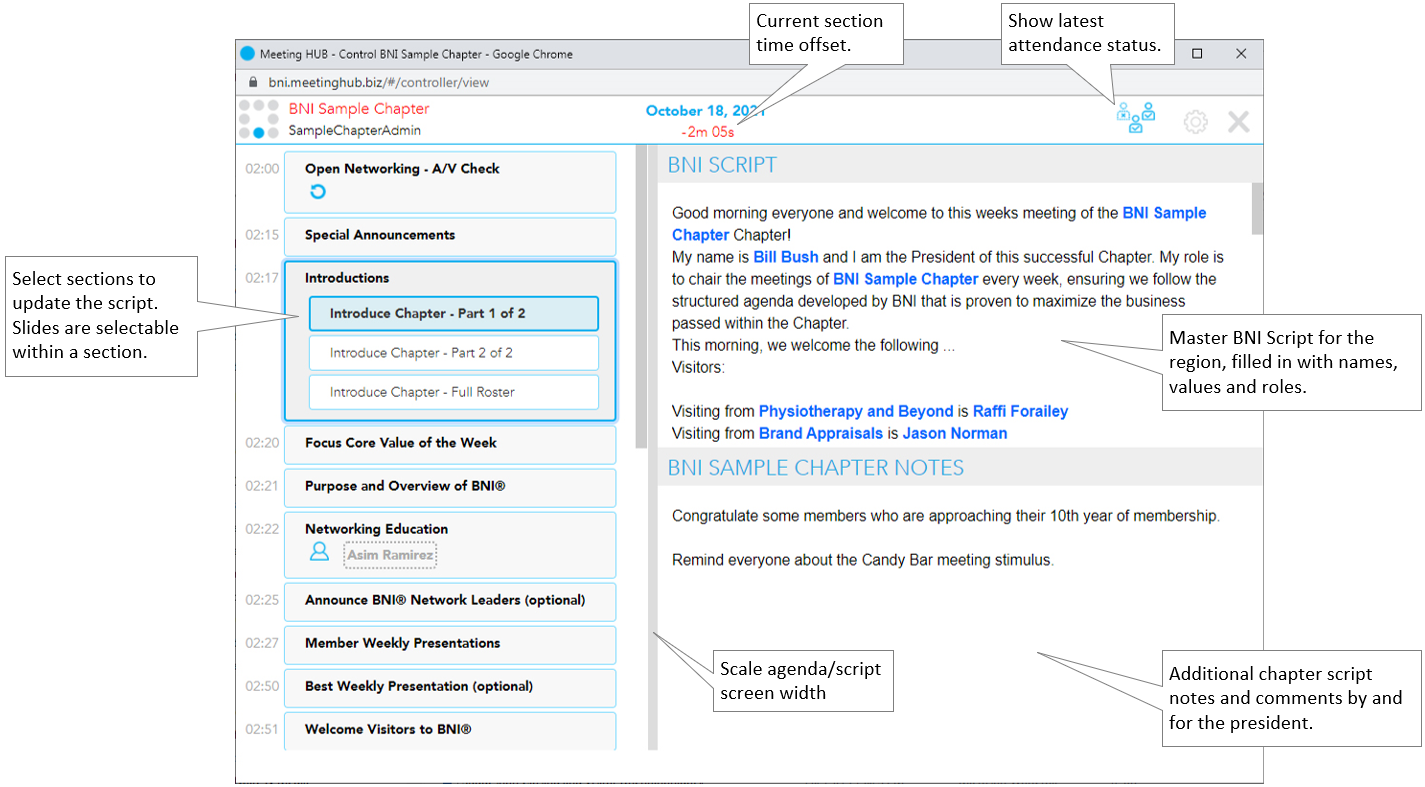
The script area displays the BNI Script and the Chapter Notes in two selectable areas. If no chapter notes are found, the chapter notes area will not be displayed.
Selecting an area will collapse the other, allowing the president to focus on the desired script. The collapsed area can also be selected by clicking/tapping the title. This will toggle the display and show only the selected area.
Note: The font size of the script can be adjusted from the Settings gear icon in the top right.
Meeting attendance is integrated
Meeting attendance consists of members, visitors, observers, subs and regional contacts. All attendees are set from the Attendance Console which is integrated with the script and slides of the controller.
|
The president can display a summary of the latest attendance from their controller by selecting the attendance icon. |
 |
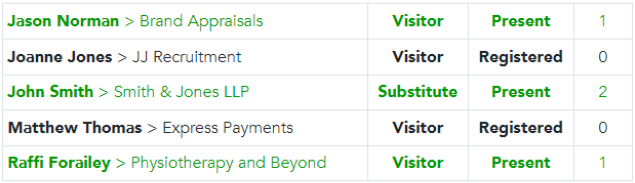
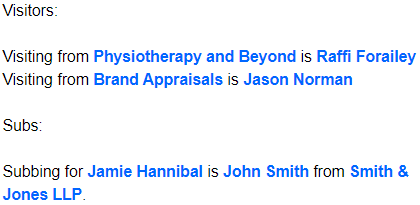
Only present visitors defined in the attendance console will appear in the script and slides:
 |
 |
The controller is optimized for mobile displays
The controller can be used from a pc, tablet, or a mobile device. When displayed on a mobile device, the controller will display only the agenda or script and allow the user to switch between them from the icon above.
|
|
Starting and controlling section speaker presentations
Presentation files and links can be received from section speakers like the Education Coordinator or Vice President. These speakers will receive links from BNI+ to upload their presentations and set the name of the topic.
For more info on section speakers, see Managing section speakers, and Speaker-guided presentations.
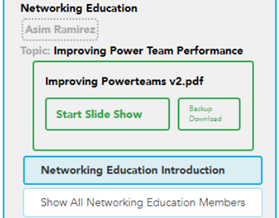
The controller will display the section’s uploaded file(s) at the top of the selected section, before the first slide.
 |
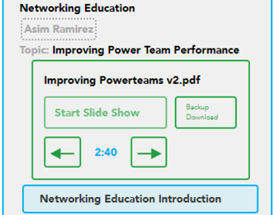 |
Each file will be displayed in a green box with an option to Start Slide Show. Once the slide show is started:
- the time and navigation arrows will appear for the president. The president can navigate the slides if they wish to.
- the speaker’s preview window will change and allow them to control the presentation.
In case the slide show did not display correctly, a Backup Download option is available. This will download the original presentation file directly to the controller’s device so that it can be displayed in its original form.
Starting and controlling featured speaker presentations
Presentation files and links can be received from weekly Featured Speakers (members, regional contacts, or others). These speakers will receive links from BNI+ to upload their presentations.
For more info on featured speakers, see Managing the featured speaker list and Speaker-guided presentations.
| BNI+ does not limit the number of featured speakers per meeting. The agenda includes slides for selection of the 1st or 2nd speaker. Should you have additional speakers, use the Select Any Speaker slide to select the 3rd, 4th, etc. | 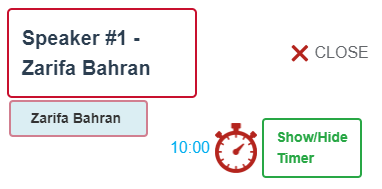 |
When a featured speaker is selected, their file(s) and bio are displayed together. The bio is typically emailed to a member that introduces your speakers. To do that, set the member responsible from the chapter settings.
|
|
|
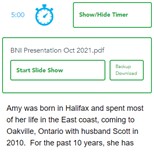
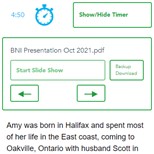
Each file will be displayed in a green box with an option to start that Slide Show. Once the slide show is started:
- the time and navigation arrows will appear for the president.
- the speaker’s preview window will change and allow them to control the presentation.
If the slide show did not display correctly, a Backup Download option is available. This will download the original presentation file directly to the controller’s device so that it can be displayed in its original form.
Making selections from the controller
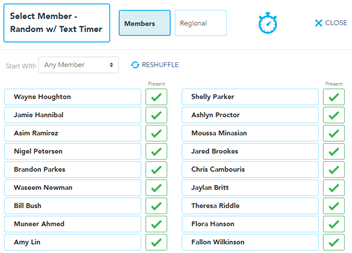
The agenda area of the controller displays sections and slides that are selected to guide the meeting presentation. There are many situations when slides will prompt for a more specific selection to display the slide.
Below are the slide cases that will prompt for additional selections:
|
 |
Note:
- These slides are indicated in the agenda with an icon after the title.

- If there is only 1 selection option, it will automatically be selected when choosing the slide.
Related Topics: