
Text & graphic elements
Last modified: 21 May, 2024
A slide consists of a background over which text, graphics or timers are placed. These elements are added from:
- the menu on the left or
- automatically depending on the slide type
Editing slide elements
Clicking the +TEXT or +GRAPHIC buttons will add a new object in the top left of the slide canvas. Click to select the new object as shown below:
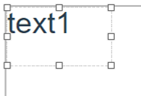 |
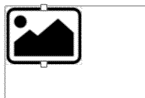 |
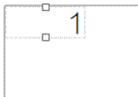 |
Only one timer is allowed per slide and the TIMER button will add it in the same manner.
A selected object can be moved or scaled by using the square handles around the edges.
Double-click the selected object to show its properties window.
|
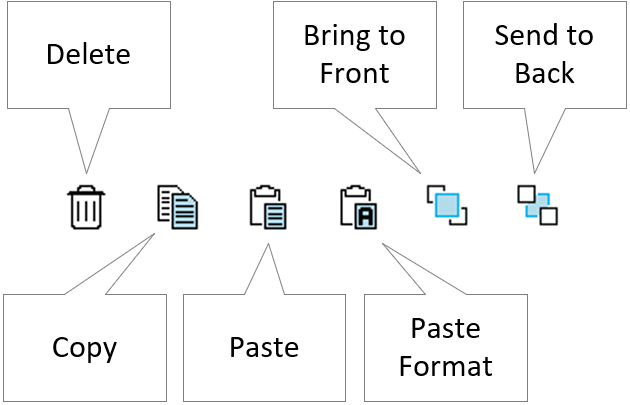
When an object is selected, additional options may appear in the top left area of the canvas. If an object is copied, additional options will appear to Paste or Paste Format. |
 |
| A grid can be displayed to assist with positioning of elements. Enable by selecting the icon the top right corner. |  |
| When selected, options to space the grid and snap objects will appear. |  |
Editing text elements
A text element can be selected, resized, and moved on the canvas.
|
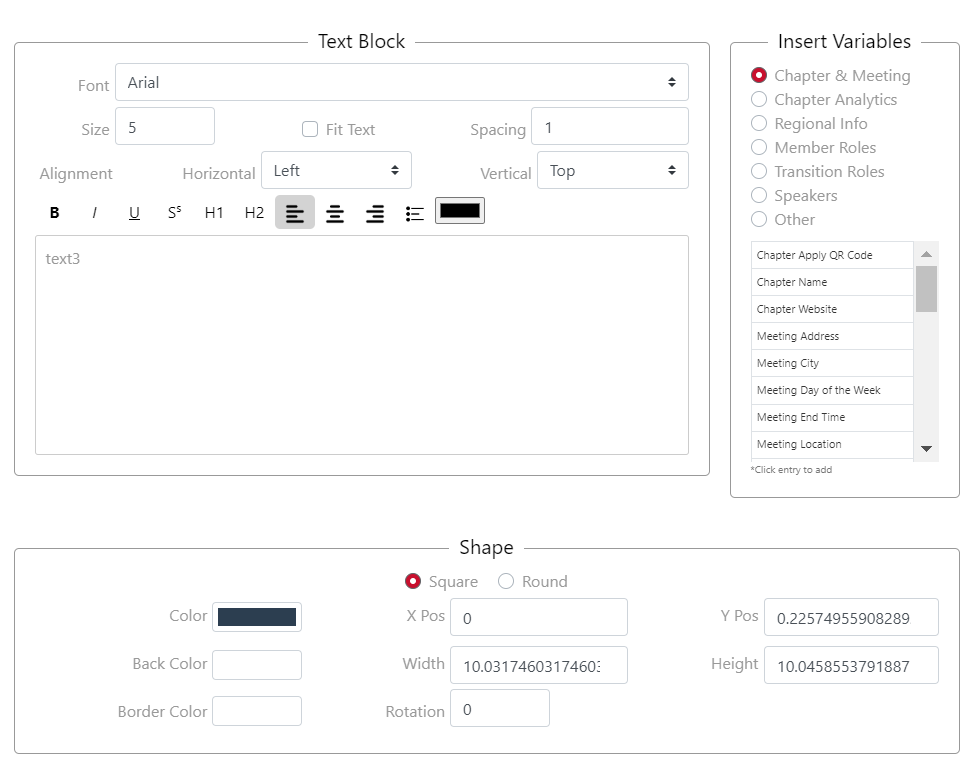
Double-clicking the text element will display the Edit Text window. This is where the content and appearance of the text element is defined. The Text Block focuses on the content. To use the formatting buttons, select a portion of the text then click above. The Appearance block defines overall properties such as the font, size, spacing, color, weight and alignment. The Fit Text option will scale the text within the borders of the text object. DELETE the text element from the window or use the small trashcan icon in the top right area above the canvas. |
 |
Note: Copying and pasting content into the text box may not preserve the original formatting. We encourage that to paste plain text then format using BNI+’s controls.
Editing graphic elements
A graphic element can be selected, resized, and moved on the canvas.
|
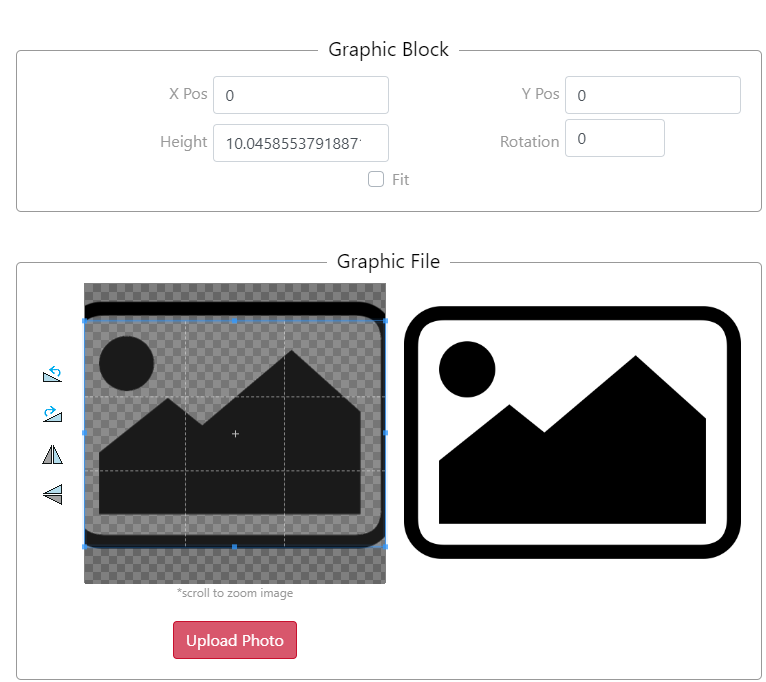
Double-clicking the graphic element will display the Edit Graphic window. Click the Upload Graphic button to set the source file. Supported formats are: JPG, PNG and GIF A column of buttons permit flipping & rotating of the graphic while a selection area permits defining an area to crop. |
 |
DELETE the graphic element from the window or use the small trashcan icon in the top right area above the canvas.
Related Topics: