
How to add video to your presentation
Last modified: 22 May, 2024
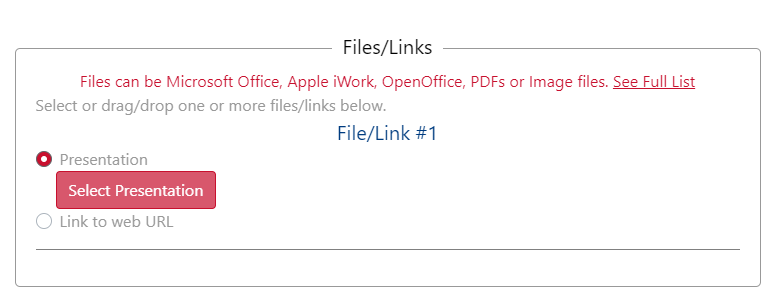
There are a couple of ways to incorporate video into your presentation. Both methods involve copying the video links into the speaker file upload area. This is done by selecting the Link to web URL option.
|
Video Streaming Service When using videos from a video sharing service such as YouTube, copy the link to a URL that plays the video into the BNI+ speaker file upload area. BNI+ will auto-detect YouTube videos and when selected they will play full screen framed in the slide presentation. For video links other than YouTube a separate screen will popup containing the selected video. You should maximize screen size and select play. Once the video is completed; exit the full screen mode and close the pop-up screen.
|
 |
|
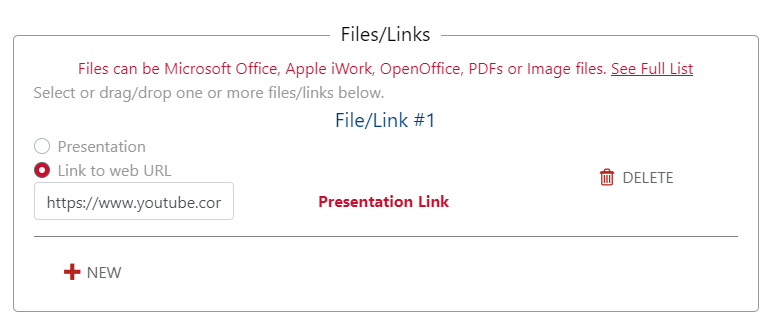
Using a File Service If your video is saved to a file service, like Google Drive, Dropbox, or OneDrive, copy the link to the file into the BNI+ speaker file upload area.
|
 |
How do I get a link to my video file?
There are several ways this can be done, depending on the source of the video.
If the video is publicly available on a streaming site like YouTube, then copy the URL displayed in the browser window.
If the video resides on a file service like Drop Box, you will need to access the video and find the Share/Get Link option. *Note: Please ensure permissions are set so that “anyone with link can access/view”. This will permit the president to start and play the video.