
Timers
Last modified: 21 May, 2024
Slides can have a timer that counts down an amount of time after which a sound is played. To enable a timer, select the +TIMER button on the left of the canvas.
A timer will appear as a simple number “1”, assuming a text counter. Once you set the appearance, you can scale and position it on the slide.
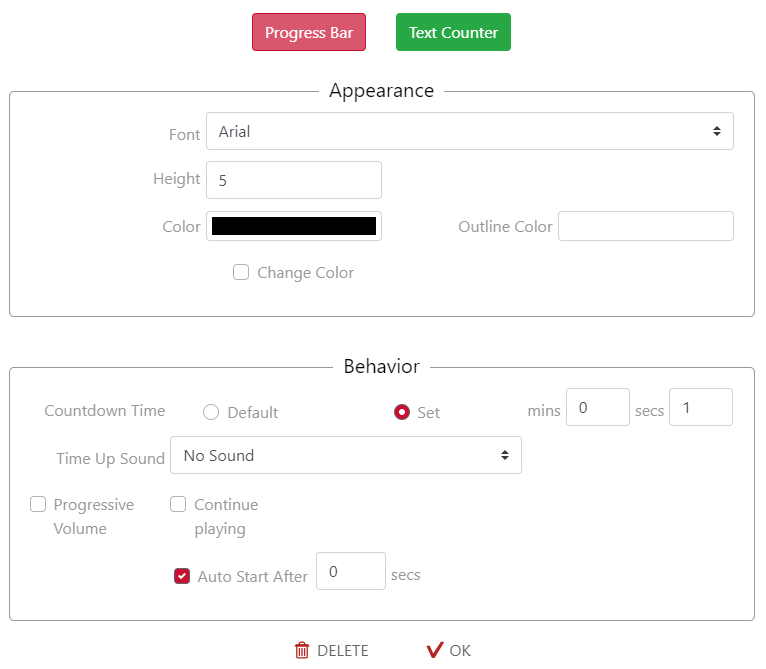
| A timer can be represented as a progress bar or a text counter. |   |
The properties that govern the appearance and behavior are grouped accordingly.
Change Color is used to trigger a different color at a certain time interval (in seconds).
|
Default timer values can be the Weekly, Speaker or Referral round and are set from Chapter > Settings. Continue playing will loop the sound. Progressive volume will increase volume of the sound in the # of Times increment until maximum volume is achieved. Auto Start is used to automatically begin the countdown within several seconds. Otherwise, the timer will remain onscreen until triggered to start by the president. |
 |
When using progress bar timers, the Start Full options will fill the bar and empty it with time.
| A timer on the slide will display the timer control for the president. |  |
The Presentation Timer
|
The Presentation Timer is only displayed if the featured speaker slide type is selected. The president’s controller has the option to start/stop this timer, as well as show/hide the timer over and above the speaker’s presentation slide. |
Related Topics: