
Editing or adding slides
Last modified: 27 May, 2024
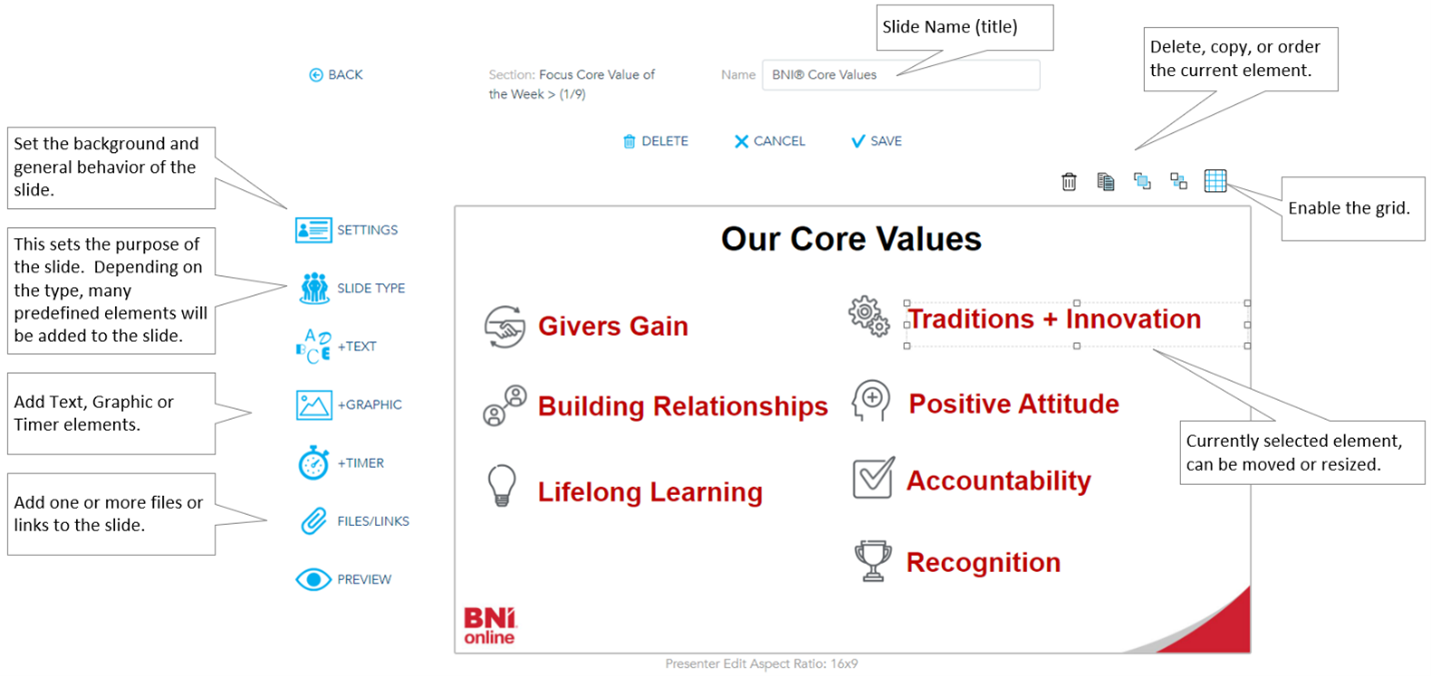
The interface provides a preview of the slide with a menu to the left when editing or adding a new slide. Additional options are available in the top right corner.
Below is a brief overview of the edit slide view:
The slide settings and type
These two options define the purpose and behavior of a slide.
|
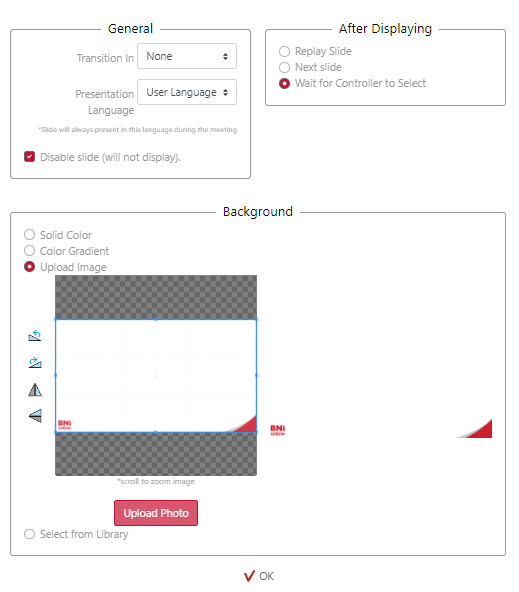
Settings is common to all slides and defines the transition, language, background, and behavior after displaying the slide. BNI+ slides are delivered in 1080p full HD with a resolution of 1920x1080. This is also known as an aspect ratio of 16:9. |
 |
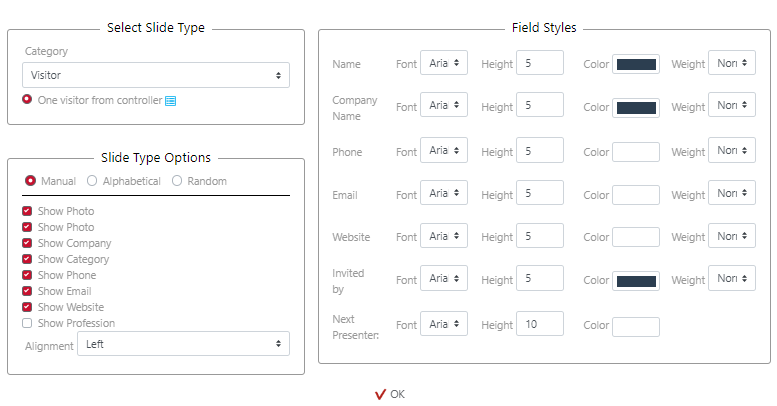
The Slide Type defines the purpose of the slide which then determines the default elements. This begins with a category selection. The categories of slides are:
|
|
Each category (except the Blank) will show available templates to select from. Each template will enable slide elements that can be scaled and positioned on the slide. These special elements are formatted from the Slide Type view.
Related Topics: