
Working with meeting sections
Last modified: 21 May, 2024
A meeting section is a titled part of the meeting that consists of one or more slides and a script.
All meeting sections are listed in the agenda which can be viewed by clicking Meeting > Agenda. This will list all sections, their start times, slides and desired duration.
Grayed sections and slides show content that is set by the region.
Both section names and slides can be selected to edit.
|
Click a section name to edit. A section’s duration is a target amount of time. This can be adjusted to suit your needs. The meeting timeline shown in the agenda will adjust based on the section durations and visibility. Some sections can be disabled depending on your meeting. These are indicated with (optional) in their name such as the Welcome New/Renewing Members (optional) section. A disabled section will not be visible in the Controller and will appear grayed in the agenda view. |
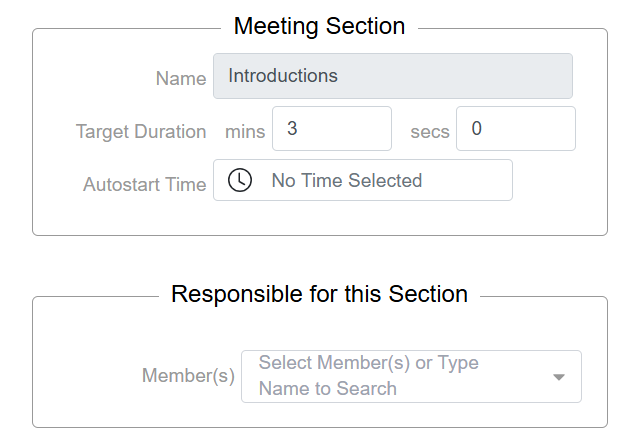 |
The Autostart Time feature can be used to automatically start a section at a specific time. This feature is used during in-person meetings to prompt everyone to have a seat as the meeting is about to begin.
Some sections of the meeting are routinely presented by members of a specific role such as the education coordinator. You can assign such members in the Responsible for this Section area. Adding a member here will email them weekly notifications to upload files to that section of the meeting. Assigned members are expected to upload presentations on a regular basis.
Related Topics: