
Playing sound during delivery
Last modified: 14 May, 2024
BNI+ plays sound in one of two ways:
- A timer runs out and a looping chime is played
- A presentation link or video pops up and plays with sound
BNI+ will play sounds from the presentation screen. This screen is shared via Zoom during an online meeting or displayed/projected on a physical screen during in-person meetings.
| For online meetings, make sure that you select Share sound when sharing the presentation screen. This is necessary for the audio chimes to be heard by meeting attendees. | 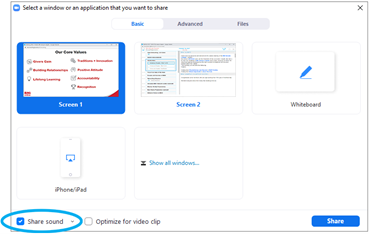 |
Testing sound with BNI+
| You can test BNI+’s audio playback from the System Check option found in the Deliver area of HOME. Click the TEST for the Sound Check and you should hear a repeating timeout chime. |  |
If you are having trouble with hearing sounds from BNI+, below are a few things to try:
- Go to System Check and Test sound, adjusting your device sound settings as required.
- Check your browser’s sound/volume settings. Some browsers can override the device volume by muting tabs or windows.
- If playing sound via headphones or speakers, check that device’s volume setting.