
Importing the chapter member list
Last modified: 21 May, 2024
Whether starting with an empty chapter list or in need of large-scale updates, you can import a member list to update your chapter.
Go to Chapter > Members and click on IMPORT at the bottom of the list.
|
As prompted by the import window, select an Excel file with columns for:
|
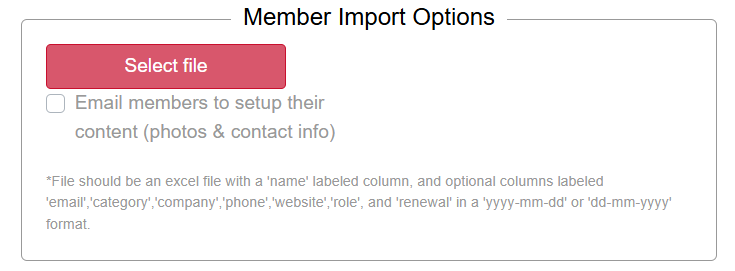 |
An option to Email members to setup their content is available.
This option will send each member a link to update their photo and contact info as it would appear on the slide show. This is often used during the initial setup of a chapter.
After selecting a file, a preview window will popup.
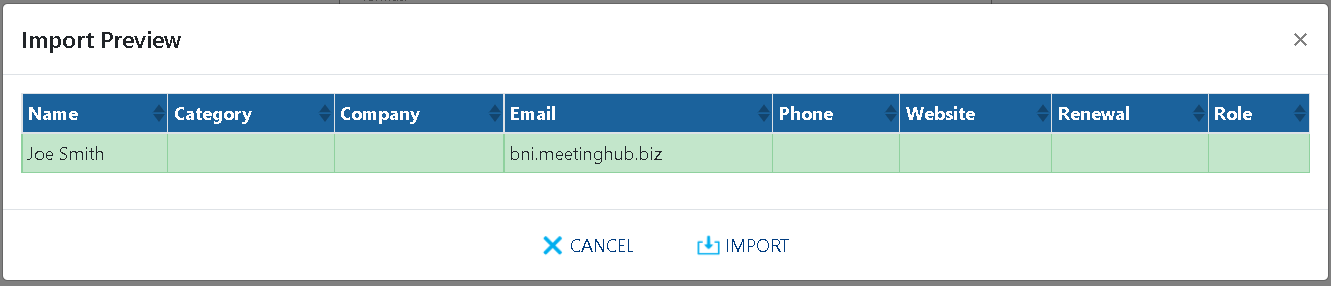
- New members will appear in green while existing members will appear in red.
- Not all columns need to be filled for the file to be imported.
- All member information will be overwritten with this import.
To complete the import, click IMPORT.
Related Topics: