
The presentation screen
Last modified: 21 May, 2024
BNI+’s technology generates the presentation in real-time as the president selects the sections and slides. The presentation screen displays the slides and presentations everyone views.
Starting the presentation screen
|
Display the screen by selecting it from the Deliver area of HOME. You can then share it via Zoom or display it on a physical screen in the meeting room. |
 |
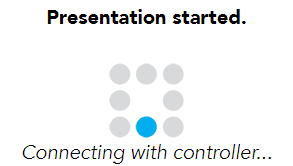
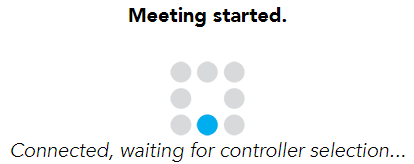
When it first starts, the presentation screen will look for a meeting controller. Once a controller is detected, the presentation will wait for a selection to display. Both messages are shown below:
 |
 |
The presentation screen Control Bar
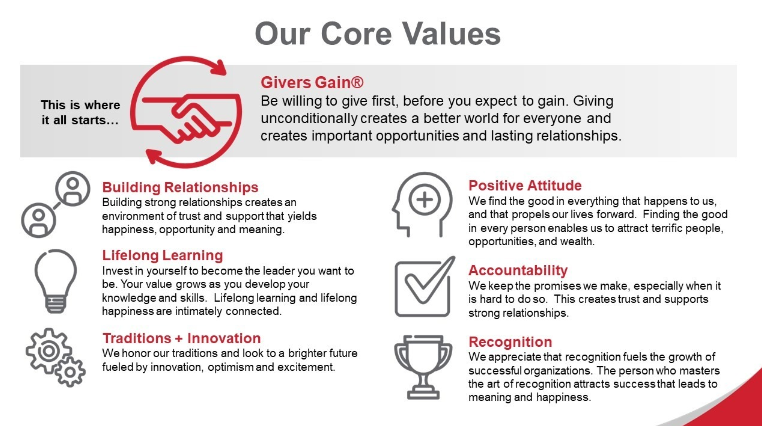
Two important features of the presentation window make it easier to display and scale the content. These features are displayed in a collapsing Control Bar at the top of the screen.
The control bar will appear when the mouse hovers in its area (blue dotted line) at the top of the presentation screen. It will automatically hide 3 seconds after the mouse moves away.
 |
|
|
When sharing the presentation screen, the browser window should be switched to Full Screen mode. You can do this by clicking the option from the Control Bar. |
 |
Note: You can also toggle full screen by selecting the presentation window and pushing the F11 key.
Fitting content in the presentation screen
By default, BNI+ will scale and display presentation content in a 1080p HD aspect ratio.
| If the display area does not match the aspect ratio, top/bottom black margins will appear. To skip the aspect ratio and remove the margins, select the Fit option from the Control bar. |  |
Note: Use the Fit function only after switching the presentation to Fullscreen. This will give you a better idea of how the content appears when displayed or shared.
Related Topics: